JDE Tools Chrome Extension
JD Edwards (JDE) uses a Julian date format that can be confusing for those unfamiliar with this ERP software. Unlike the astronomical Julian date, the JDE format has a specific structure that facilitates date management within the system.
What is the Julian Date in JD Edwards?
The Julian date used by JDE represents dates between January 1, 1900, and December 31, 2899; it consists of six digits with the following structure:
CYYDD
Where:
-
C: Represents the century (0 for 1900, 1 for 2000, 2 for 2100, etc.)
-
YY: Represents the year within the century (for example, 15 for 2015)
-
DDD: Represents the day within the year (001 for January 1, 365 for December 31 in non-leap years)
For example, the Julian date 115001 is interpreted as January 1, 2015.
How to Interpret the Julian Date
Now that we know what the Julian date is, let’s look at some examples of how we should break it down to convert it to the Gregorian YYYY-MM-DD format that we use daily.
Let’s take the example 115044.
-
C = In this position we have the value 1. Starting from century 19, we add this digit (19 + 1) and multiply by 100 to get the century. This gives us a result of 2000
-
YY = In this position we have the value 15. If we add this value to the result we obtained in the previous point, we can get to the year. In this case, the year is 2015.
-
DDD = In this position we have the value 044. This value represents day 44 within the year we obtained in the previous point. If we take January 1 as day 1 and count up to day 44, we’ll reach February 13 in the Gregorian calendar. Thus we arrive at the final result. The value 115044 represents the date 2015-02-13.
Let’s now look at example 114181. If we apply the same procedure, we would first determine that the year is 2014. Then we would have to count the days until confirming that day 181 represents June 30. Therefore, the final result would be that 114181 represents the date 2014-06-30.
Data Selection imports
When using Batch reports in JD Edwards EnterpriseOne you can use data selection to limit the number of records that are retrieved. In the data selection you can include a list of values to filter the results that are equal or not equal to the selection; but you have to add one entry at a time. This could be a tedious work for a large list of values.
Chrome extension
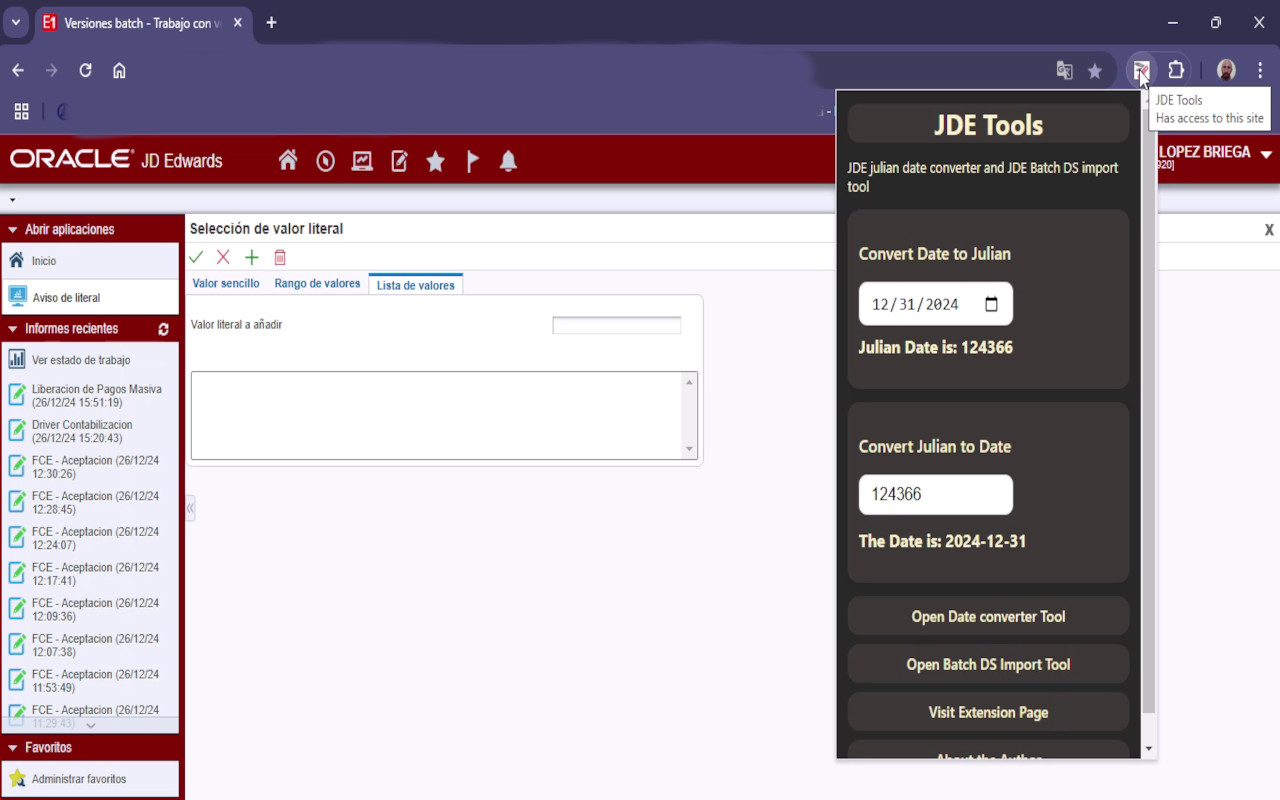
If you feel frustrated dealing with JDE julian date and [DS] capabilities. You can install my JDE tools Chrome extension designed to enhance productivity when working with JD Edwards EnterpriseOne. This tool provides quick access to Julian date conversion and batch data selection import capabilities directly from your browser.
Features
-
Julian Date Converter:
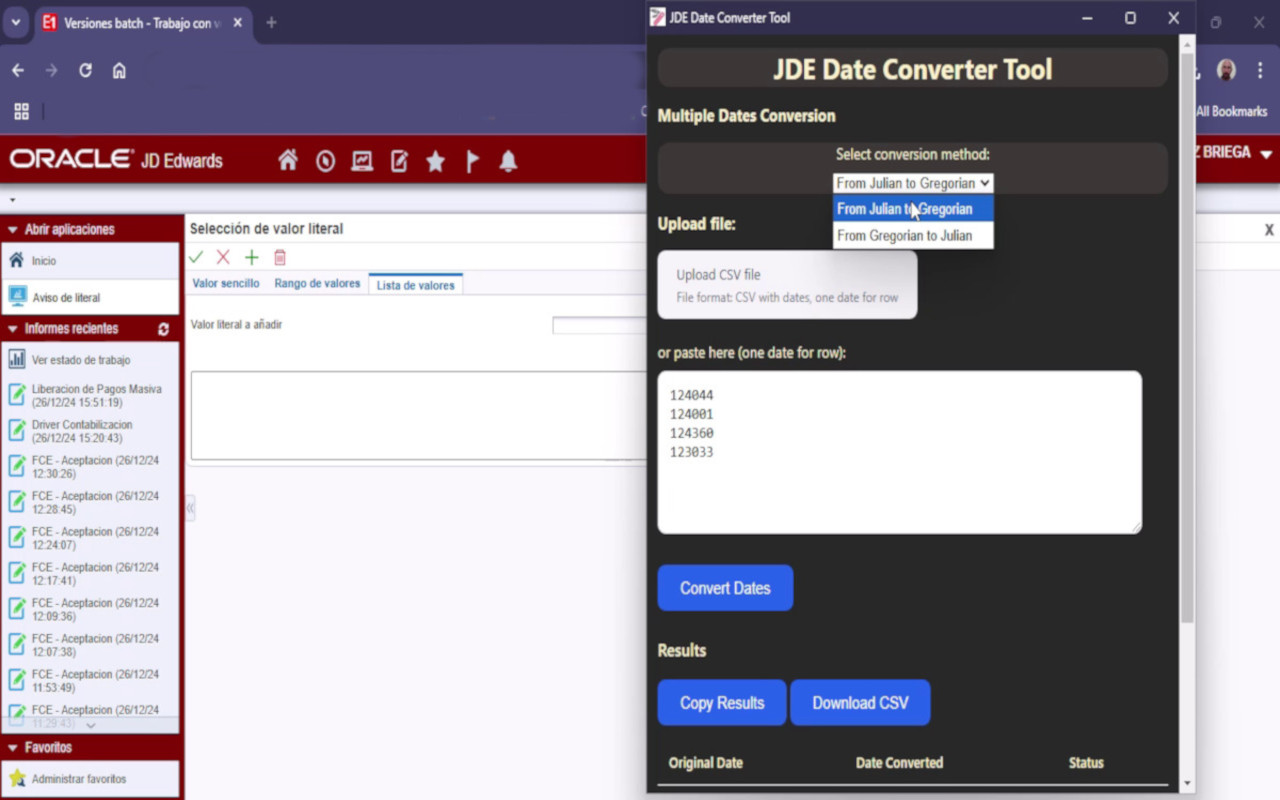
- Convert Julian dates (CYYDDD format) to Gregorian dates (YYYY-MM-DD)
- Convert Gregorian dates to Julian dates
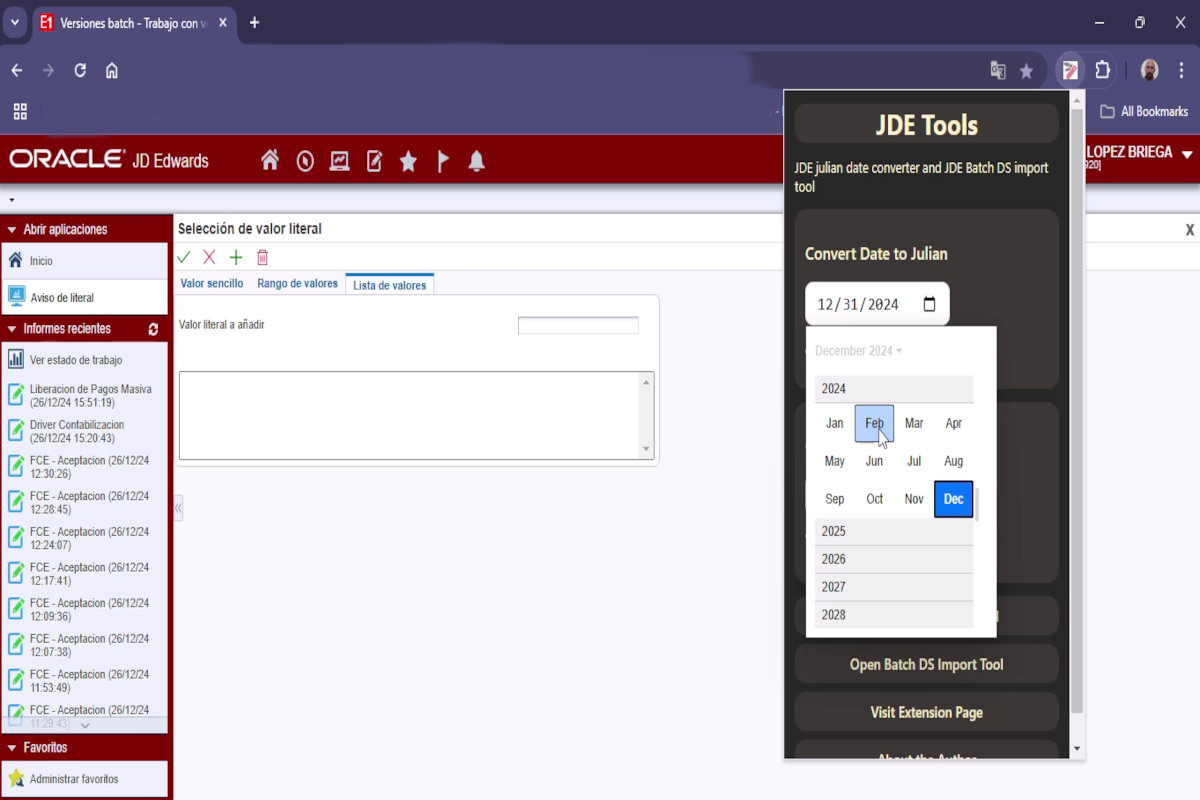
- Supports date picker to easily manipulate dates.
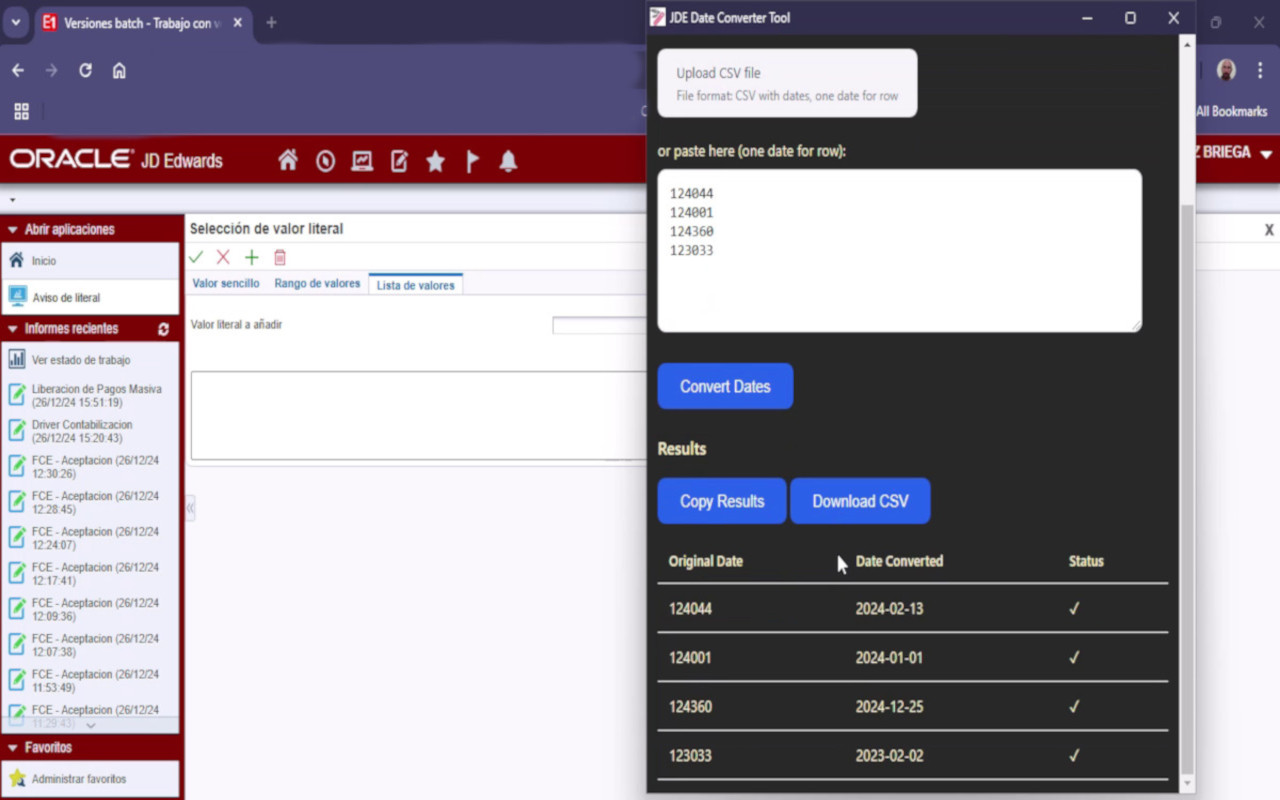
- Supports for file uploading for multiple conversions.
-
Data Selection import tool:
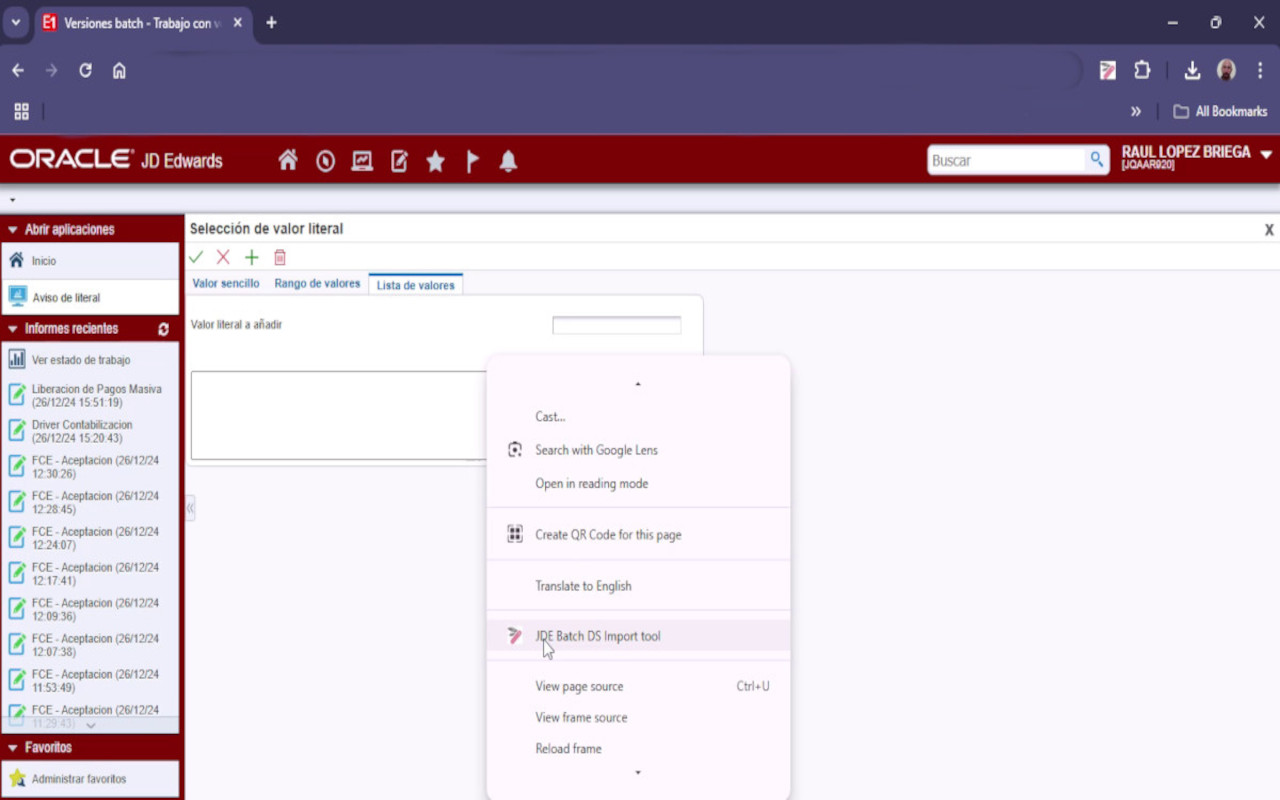
- Open the import tool from the context menu with right mouse button.
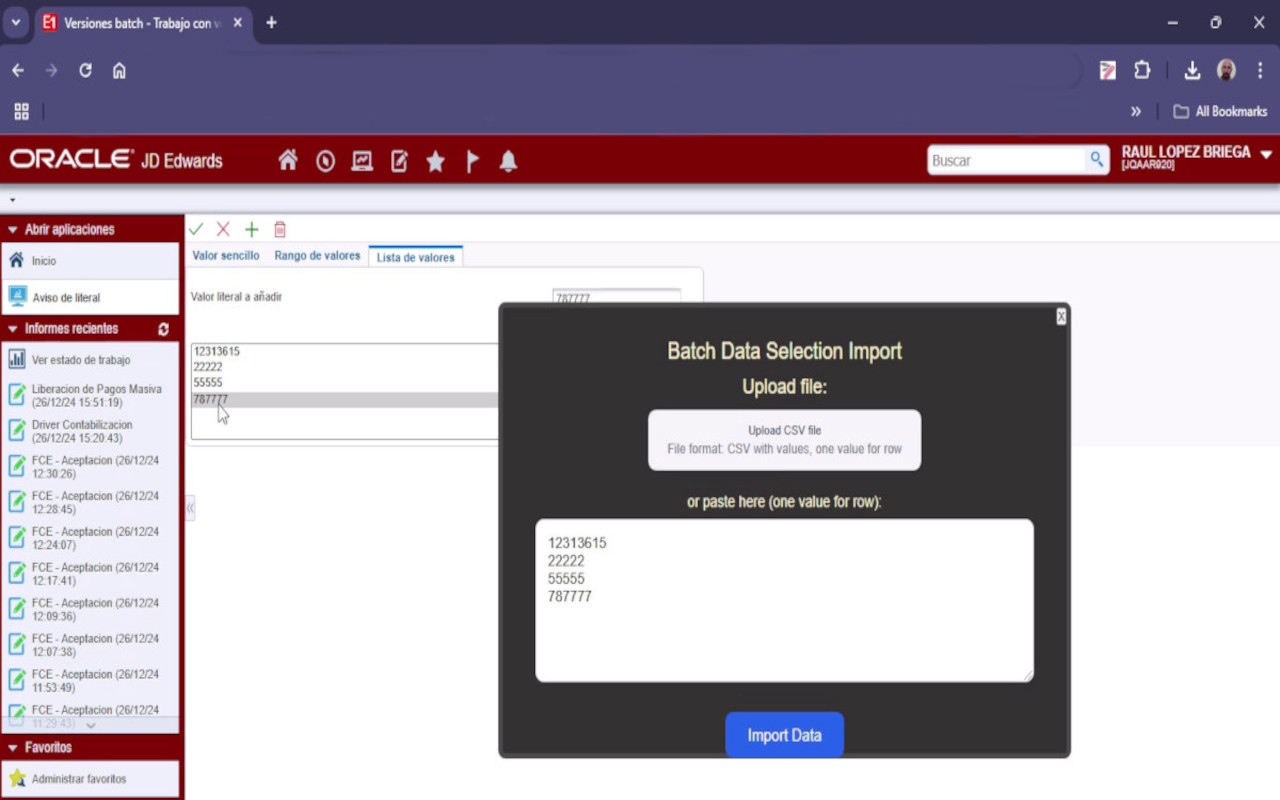
- Paste multiple values for batch report processing.
- Avoids tedious work of loading a list of values one by one manually.
- Support to file upload for multiple values.
For more information visit Chrome Web Store extension page.